• About

Cloud Code Insights

  • Debugging Around Managed Package Code In Salesforce Apex

    July 26th, 2024

    If you’re working an org with a large managed package, you may have had to debug Apex for a transaction that includes both managed package code and internally developed code. If the transaction is large enough, the managed code may be taking up too much of the debug log and you won’t be able to properly debug.

    A method to fix this is to adjust what you are debugging in order to avoid the managed code.

    Setup -> Debug Logs -> Select ‘New’ in the User Trace Flags section.

    • Click the ‘New Debug Level’ button.
    • Set the Apex level to ‘Info’. This will prevent managed package from appearing in the debug logs.
    • Save the log level.
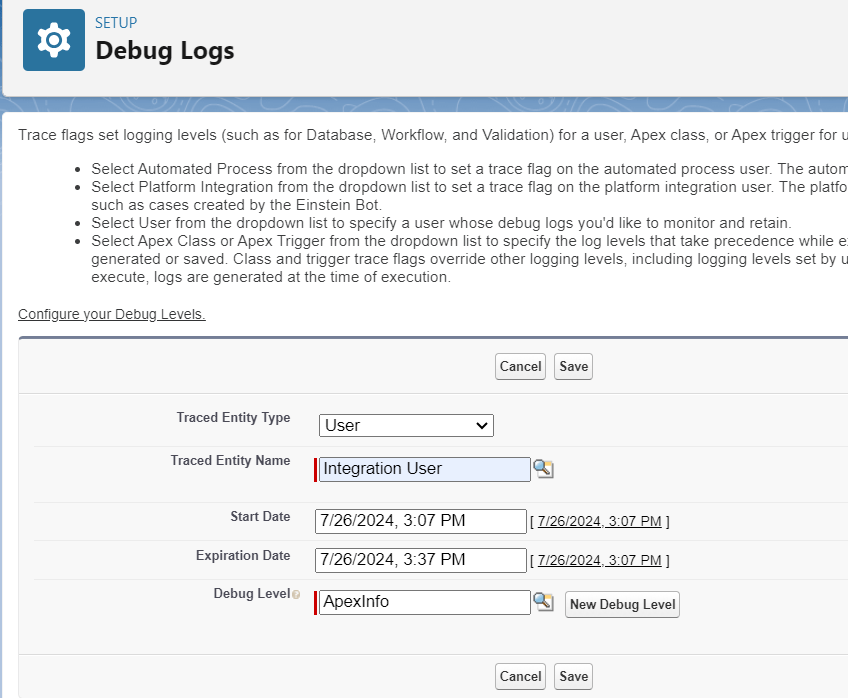
    • Traced Entity Type should be User.
    • Traced Entity Name: Name of the logged in user
    • Start Date and Expiration Date can remain the same.
    • Debug Levels: The new log level that was created where Apex is set to ‘Info’.
    • Click ‘Save’ to start the debug tracing.
      Now since the Apex log level is set to ‘Info’ you probably aren’t going to get the information that you are looking for in you’re logs.

      • Back on the debug logs setup page, select ‘New’.
      • Create a new debug level with the Apex Code level set to ‘Finer’ or ‘Finest’. In my personal experience I’ve always used ‘Finer’ and this has returned enough detail to debug.
      • The rest of the values will depend on what you are trying to debug but if it’s just an apex issue that you are trying to resolve, then set the other log levels to info.
      • Save the log level
      • On the traced entity type field, select ‘Apex’
      • Traced Entity Name: the name of the apex class that is related to the issue.
      • If there are multiple classes which are related to the issue that you are trying to debug, then a new log can be created for each of these classes.
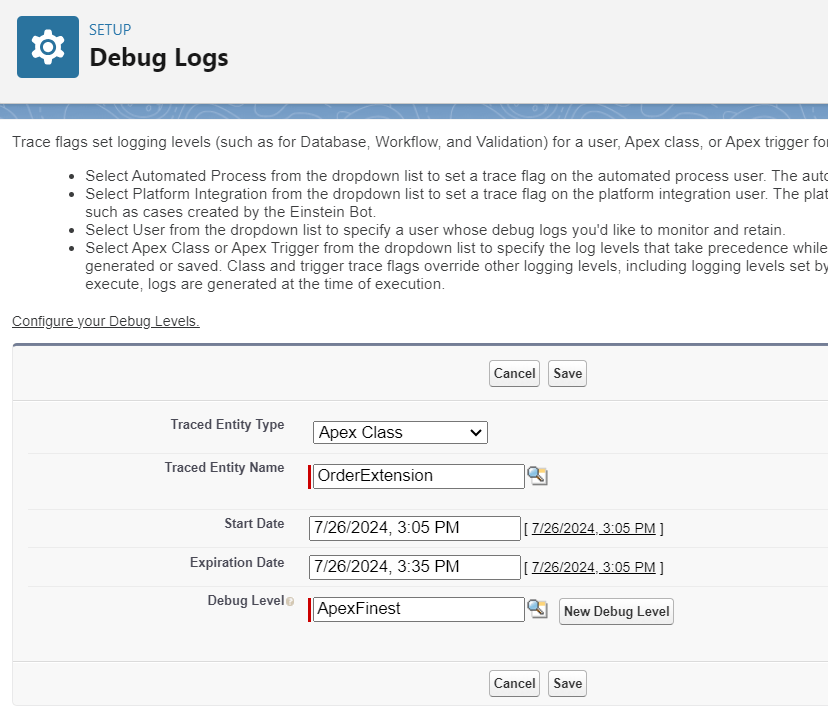
        In summary, we are creating at least two debug levels here. One for the specific user that is logged in where the Apex log levels is set to info. Then a second log level for tracing one or more Apex class where Apex log levels are set to Finest.

        Now when the logs are recorded, there should be much more limited information about the managed package code which is running since the Apex log levels are set to info for the running user.
      1. Apex User History Tracking

        December 26th, 2023

        This idea originally came from this Ideas Exchange post.

        Since Salesforce does not offer an out of the box method of creating history records when certain changes are made to User records, here is a simple way we can do this with Apex.

        I have included all the code for this in this Git repo here but here is a complete break down of all of the components involved…

        1. Create a custom metadata type which we can use to record which fields we want to track. In my code I call this metadata type ’User_History_Fields__mdt’.
        2. Create a custom object to store the history records – I call this object ‘User_History__c’ in my code.
          • I have created a lookup field to the User object (apparently a Master/Detail relationship is not allowed to a user object) fields to store the original value, new value and field api name.
        3. Create a new Class which we will call from the User Trigger to create the history records, this is called ‘CreateUserHistory’ in my code.
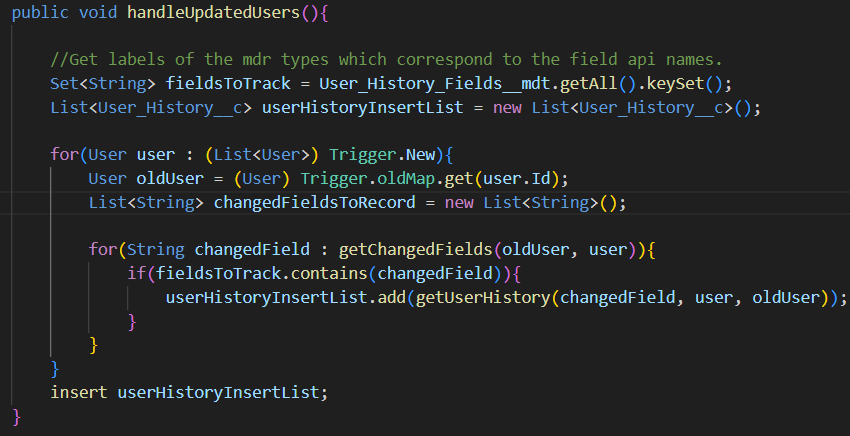
          • The first method I create in this class is called ‘handleUpdatedUsers’. This will iterate over the updated user records and call separate methods to check which fields are changed and they match with the values that we want to track from the custom mdt type. Then it will insert the user history tracking records.
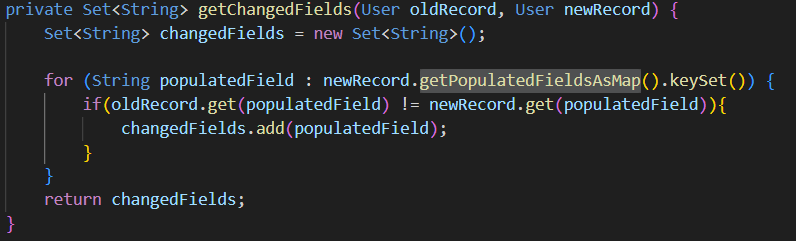
        • The ‘getChangedFields’ method checks all the populated fields on the User record and compares those against the fields from previous version of the User record stored in Trigger.oldMap. If the field is changed, then it is added to the List<String> which is returned.
          • The ‘getPopulatedFieldsAsMap’ is an Out of the box Salesforce method which returns a Map<String, Object> where the String is the field API name and the object is the field value.
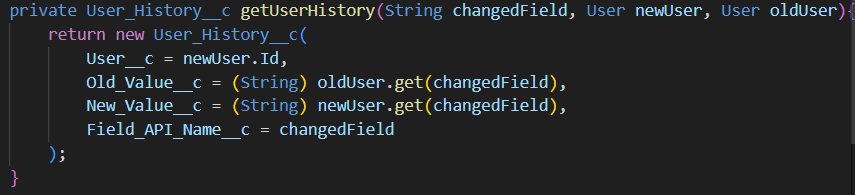
        • The ‘getUserHistory’ method creates a ‘User_History__c’ object and writes to the fields that we had created in an earlier step.

        4. Now deploy the CreateUserHistory class into the org if you haven’t already.

        5. If there is not already a User trigger in the org, create a new one. Call the CreateUserHistory class from the trigger in an After Update context.

        And that’s it! Please reach out if you have any questions. The test class can be found on the Git repo.

      Blog at WordPress.com.


      Loading Comments...
       

        • Subscribe Subscribed
          • Cloud Code Insights
          • Already have a WordPress.com account? Log in now.
          • Cloud Code Insights
          • Subscribe Subscribed
          • Sign up
          • Log in
          • Report this content
          • View site in Reader
          • Manage subscriptions
          • Collapse this bar